

KeyShot has been using AI as part of the rendering workflow for many years. Denoising and in particular progressive denoising relies on custom trained AI models that speed up the creation of noise-free rendered images. KeyShot 2025.2 introduced a new generative AI workflow called AI Shots. AI Shots enables the creation of images utilizing the CAD model that KeyShot is currently working on. AI Shots relies on a combination of a generally available AI model with an in-house custom fine-tuned AI model to leverage the information provided by the CAD model. AI Shots runs locally on the desktop and does not rely on any cloud services which ensures complete privacy of the CAD model and generated images.
AI Shots had a number of important goals: Privacy of the images and CAD data, and respecting the CAD model (reducing hallucinations that would cause an AI rendered image of a CAD model to introduce new non-existing features to the CAD model). We have achieved the privacy by running the AI model locally on the end user’s computer. This is a trade-off as it required a powerful GPU to effectively run the AI models. Fortunately, most KeyShot customers have GPUs that they use for ray tracing and the same GPU can be used for AI as well. Secondly, existing AI models have been trained to create images from scratch or based on other images. While an image of a CAD model can provide a good basis we found it insufficient to prevent the AI model from adding details lacking in the model. We therefore have fine-tuned the image generation models to take as input 3D data from the CAD model. This significantly reduces hallucinations and makes it much more likely that the rendered AI image will look like an actual rendering of the CAD model. Based on this fine tuned AI model we have introduced an AI mode called Restyle, where a CAD model can be painted efficiently by AI in order to explore different styles based on a prompt.
In KeyShot 2026.1 we are introducing a new and vastly improved version of AI Shots that not only improves the quality of the AI generated images but also adds new workflows including editing any images whether generated by AI or rendered in KeyShot.
AI Shots in KeyShot 2026.1 requires downloading approximately 16GB of AI model data before it can be used. This data is actually several AI models each optimized to serve specific actions in the AI Shots interface. The core AI model in AI Shots is the Qwen Image Editing model, which has been further custom trained using in-house generated images for the different modes provided by AI Shots.
Hardware Requirements
AI Shots requires a recent GPU from either NVIDIA, AMD, or Apple with at least 16GB of memory. It can also run using only the CPU, but this will be much slower than using a dedicated GPU. AI Shots runs on both Windows and Mac OS. AI Shots runs locally on the machine and the computation is therefore completely private.
Using AI Shots
AI Shots in KeyShot 26.1 has two major modes: Generating images from the CAD model or editing an existing image. The image generation mode was introduced in KeyShot 25.2, while the editing mode is new in KeyShot 26.1. AI Shots has an option to generate multiple images from the same prompt. This is an effective way to get an image with the desired look as even small variations can have a significant visual influence on the appearance of an image. A difference in 26.1 compared to 25.x is that the prompt can be short and descriptive. AI Shots in 25.x required longer more detailed prompts. It is still possible to use a long prompt, but it is not required.
Using AI to Generate Images
AI Shots provide 3 modes for generating images: Restyle, Background, and Imagine.
Restyle is a powerful way to use AI to generate images based on the raw CAD model. Restyle ignores the existing materials on the CAD model and with a prompt the user can describe what the CAD model should look like and in what setting the CAD model should be placed. Based on the descriptive text in the prompt the CAD model will be rendered using AI with the materials, lighting, and a setting that matches the description.
Examples of AI Shots Restyle outputs with the images below given the prompt ‘California Coastal Interior’.
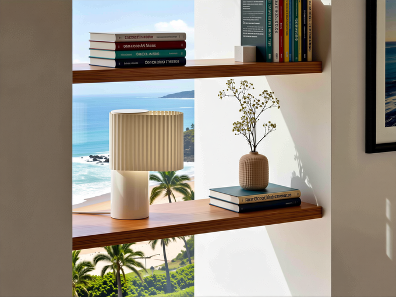
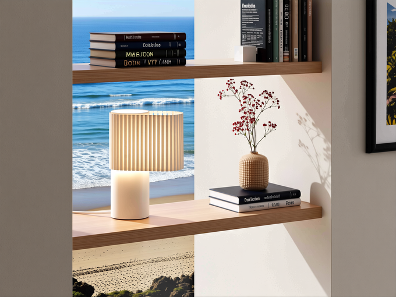
Background takes the rendered CAD model in KeyShot and generates a setting that integrates the CAD model as it looks in KeyShot. AI Shots will strive to match the lighting on the CAD model with the requested background in the prompt. To make the prompt more effective it is best to describe both the product as well as the background in the prompt in order to give AI Shots as much information as possible to work with.

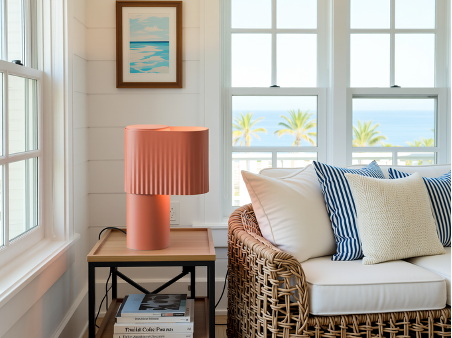

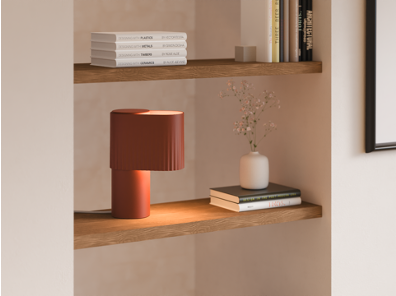
Rendered CAD in KeyShot model shown on the top. AI Shots Background outputs the two images below given the prompt ‘Lamp in a California Coastal interior. Breezy whites, natural fibers, and relaxed textures to create a space that honors laid-back luxury and celebrates effortless sunshine living.’.
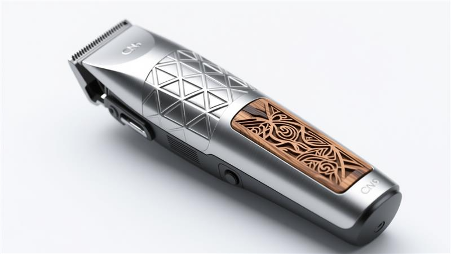
Imagine is a pure generative AI model that ignores the CAD data and simply creates an image based on the prompt. This can be used to explore ideas or to create full backgrounds or textures without taking into account the CAD model in KeyShot.
Examples below with the prompt: ‘Photoreal electric trimmer, aerospace-grade titanium shell with CNC-milled geometric surface pattern, hand-carved bog oak inlay panels set flush into the body, contrast between cold metallic precision and warm organic grain, isometric three-quarter view, white seamless background, KeyShot-style studio render’

Using AI to Edit Images
In KeyShot 2026.1 AI Shots is enhanced with a new powerful editing capability. As with generating images there are multiple modes for editing: Transform, Replace, and Upscale. The modes work on both AI generated images and images rendered in KeyShot (including screenshots).
Transform makes it possible to change existing images based on a prompt. This can be any change such as removing components, changing colors, moving an item, or placing a product in a specific setting.
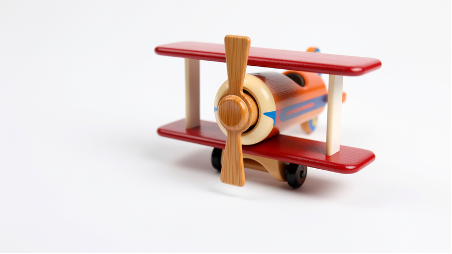
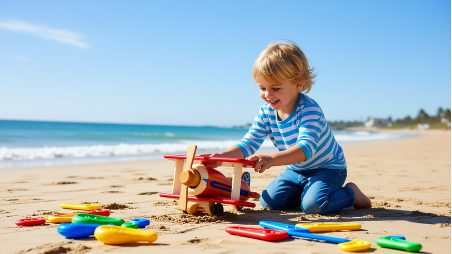
Examples of Transform below: AI Shots Transform can be used to take an image of a product such as the toy airplane and place it in a setting. The image on the right uses the prompt ‘A kid plays with the airplane’.

Replace is similar to Transform except the change is made to a specific region highlighted by the user. With Replace, AI Shots will only make a localized change. This can be used to delete specific items, change a specific material, or add a feature in a specific location.
AI Shots Replace can be used to edit regions in an image. Taking the examples below, where AI Transform also added other toys on the sand. On the right the image shows the output given a mask over the toys on the sand and the prompt ‘Just Sand’.

Upscale is using AI to increase the resolution of images either by 2x or 4x. AI will add details where needed. This is a quick way to get a higher resolution image. No prompt is required for upscaling images.
Examples of AI Shots Upscale: Left original image, right upscaled version (2x). Notice the added detail and crisper edges in the upscaled version.


AI Shots Workflows
Below is an example of AI Shots workflows that show how an image can be created using a mix of restyle and editing operations.
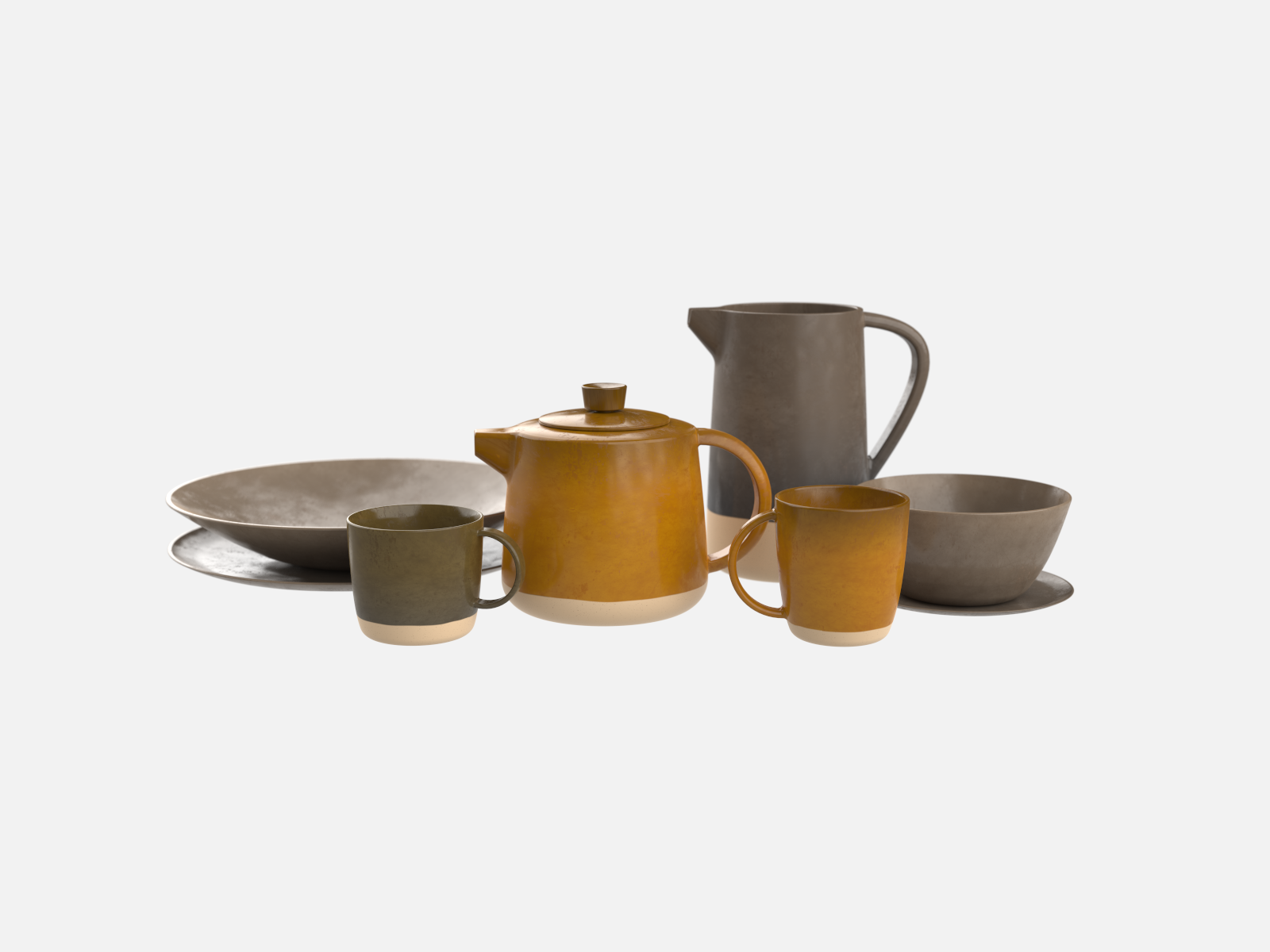
Starting with a Visune scene with tableware.
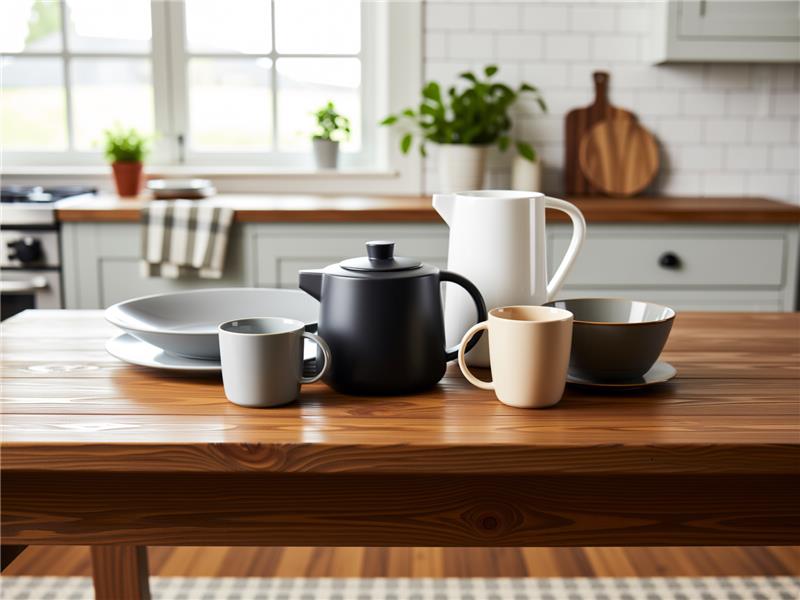
Use Restyle with the prompt ‘Contemporary tableware in a Farmhouse interior. The tableware has varying colors, finishes and textures.’

Then to add life to the scene, a number of Replace Edits.
1st Replace :
Added a puff of steam using a mask painted above the pot.

2nd Replace:
Added coffee in the left mug using a mask painted at the top of the mug.

3rd Replace:
Added soup in the large dish using a mask painted on the inside of the dish.
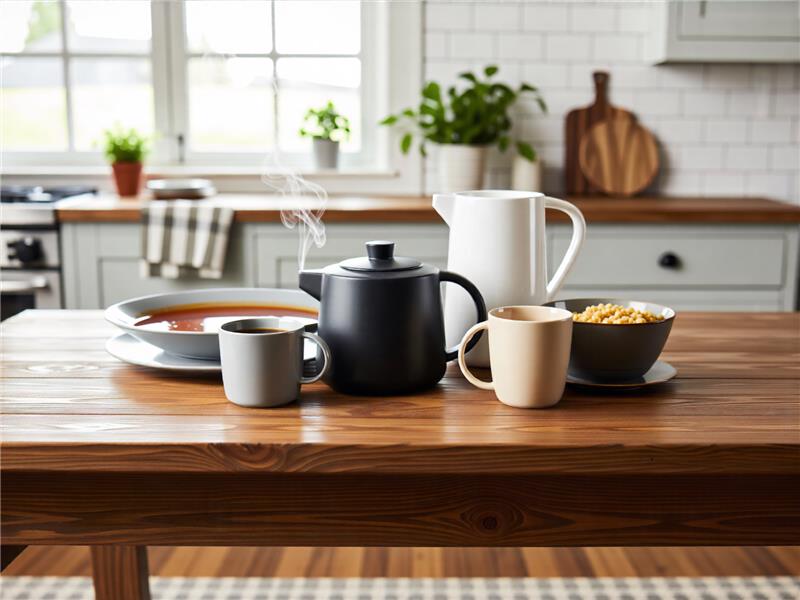
4th Replace:
Added cereal in the bowl.
5th Replace:
Added a spoon to the cereal bowl.

5th Replace:
Added a spoon to the cereal bowl.
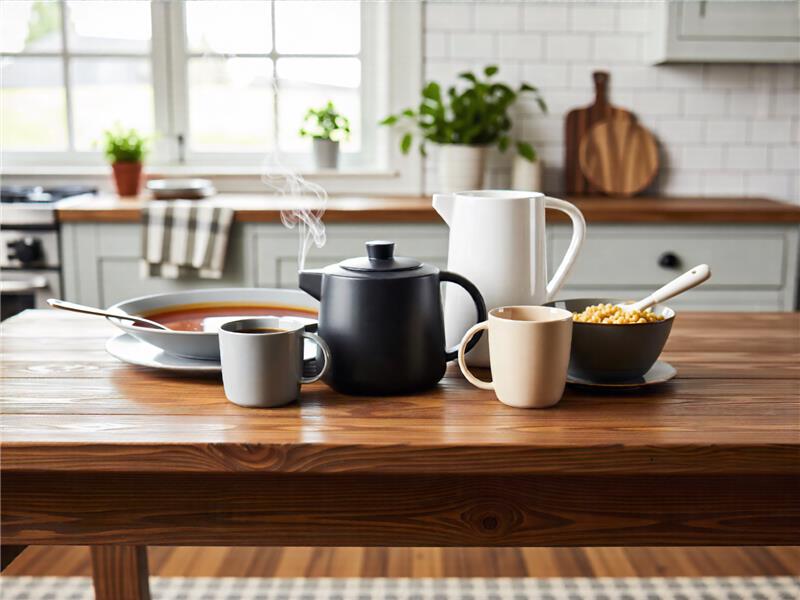
6th Replace:
Added a metal spoon to the soup dish.
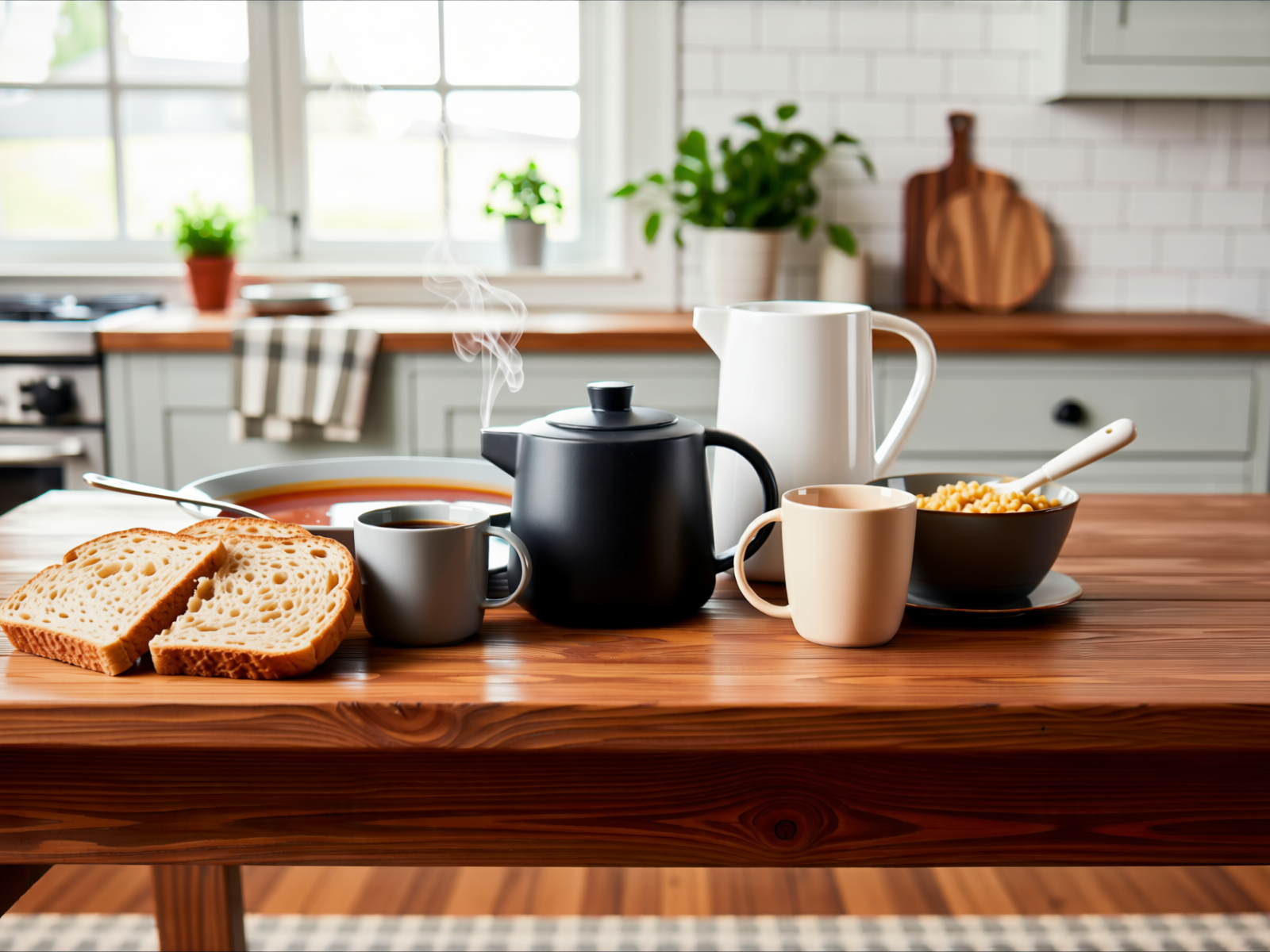
Then use Transform for adding bread to the image.
Transform was specifically instructed to place a few slices of bread to the left of the soup dish.
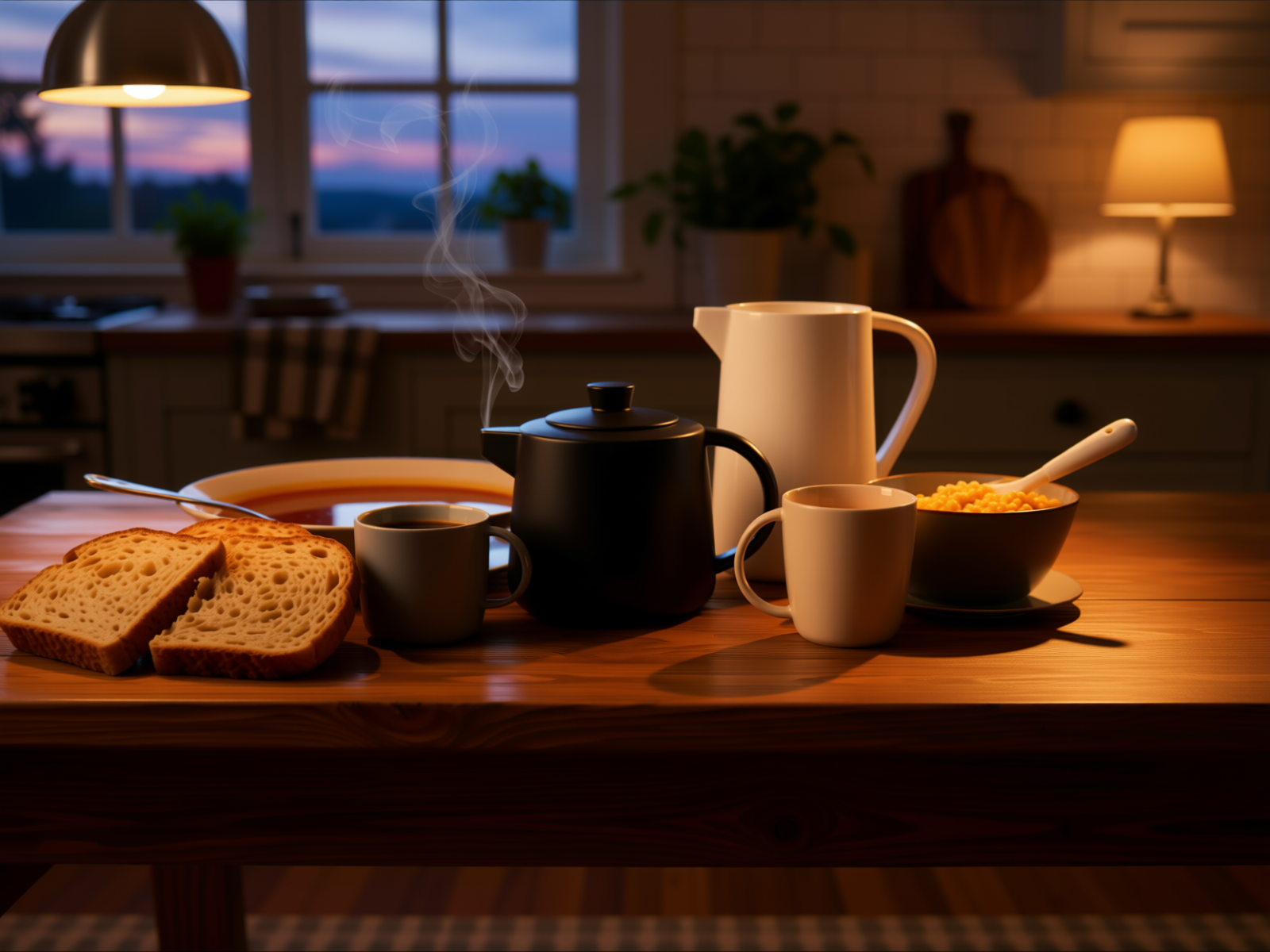
One final Transform to make it late evening with cosy indoor lighting.
AI Shots Performance
AI Shots runs best with a recent GPU from either NVIDIA, AMD, or Apple. It can run using a CPU, but this is generally much slower than using a dedicated GPU. To highlight the performance of different hardware platforms we have tested AI Shots on the following hardware:
- NVIDIA Blackwell Max-Q 96GB
- AMD R9700 AI PRO
- MacBook Pro M5Max (36GB, 32 GPU Cores)
- AMD Ryzen Threadripper PRO 9995WX
Benchmark
We performed benchmark tests for Restyle at 1024×1024 resolutions.

Above: Time taken to generate a single 1024×1024 image using AI Shots Restyle.
Conclusion
AI Shots in KeyShot 2026.1 is a major upgrade that significantly improves the quality and capability of AI Shots. In KeyShot 2026.1 new editing capabilities have been introduced that makes it faster and easier to make changes to images whether rendered in KeyShot or generated with AI Shots.
AI Shots remain unique in that it has been trained to respect the 3D CAD model. The reason for this custom training is to minimize any unwanted changes to the CAD model, where AI might add features or components that do not exist in the original CAD data.
Another unique feature of AI Shots is that it runs entirely local using the users GPU or CPU to run the AI model. No CAD data, prompt, or any other data is uploaded to the cloud ensuring full privacy of the CAD model and generated images.


