
We're excited to bring you this guest post by KeyShot Student Ambassador Mees Slewe, an industrial design engineering student at The Hague University of Applied Sciences.
⇒ Learn more about KeyShot Student Ambassadors

As product designers, we often see 3D rendering as the final step of a project the moment we make our finalized concept look photorealistic. But what if we used rendering technology at the very beginning of the design
process, to create physical tools that help us ideate?
I recently discovered that KeyShot’s Displacement feature is not just for making bumpy renders, it’s a powerful tool to literally change geometry and manufacture tactile prototypes.
In this post, I will walk you through my exact workflow to create custom, 3D-printed sketch texture plates that help me add instant, textures to my sketches.
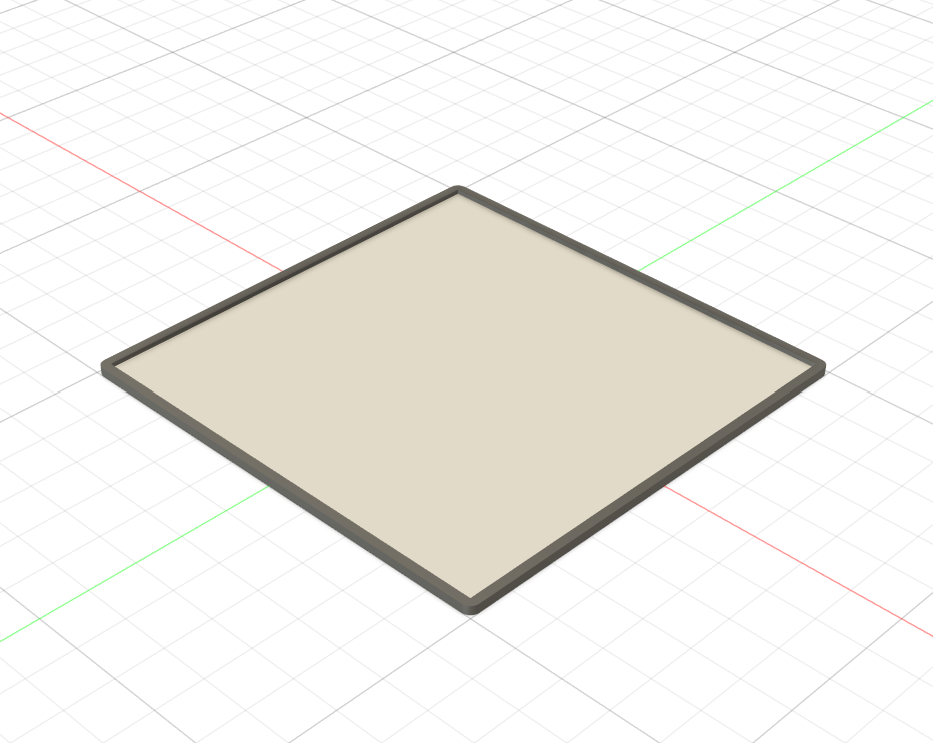
Step 1: Preparation in Fusion 360
We start out in CAD. For this project, I used Autodesk Fusion 360 to create the base model for my texture plate.
1. I sketched a simple 10x10 cm square.
2. I created a border around it and executed the profile down by 1mm to create a frame.
3. I then made an offset of 2mm on the inner plane, pushing it down so the entire piece has a total height of 2mm, forming a sort of 'minitray'.
4. A good tip is to add a different material in Fusion 360 on the plane.
I then exported this as a STEP file.
Step 2: KeyShot Displacement
After importing the STEP file into KeyShot, I opened the Material Graph for the inner plane material. KeyShot recognizes that this single body has two distinct material areas based on the colors I assigned in Fusion.
Here is how I built the procedural displacement material:
1. Source: I sourced a high-quality, black-and-white displacement or roughness image from AmbientCG.
2. Color Adjust: I connected the texture map to a Color Adjust node. The goal here is to reduce grayscale as much as possible, I want sharp, defined peaks and valleys.
3. Color To Number: Next, I connected it to a Color To Number node. This gives absolute control over whether an area is completely black or completely white, ensuring a clean 3D print without unwanted artifacts.
4. Displacement: Finally, I connected the chain to a Displace node and executed the geometry to see the model physically transform.

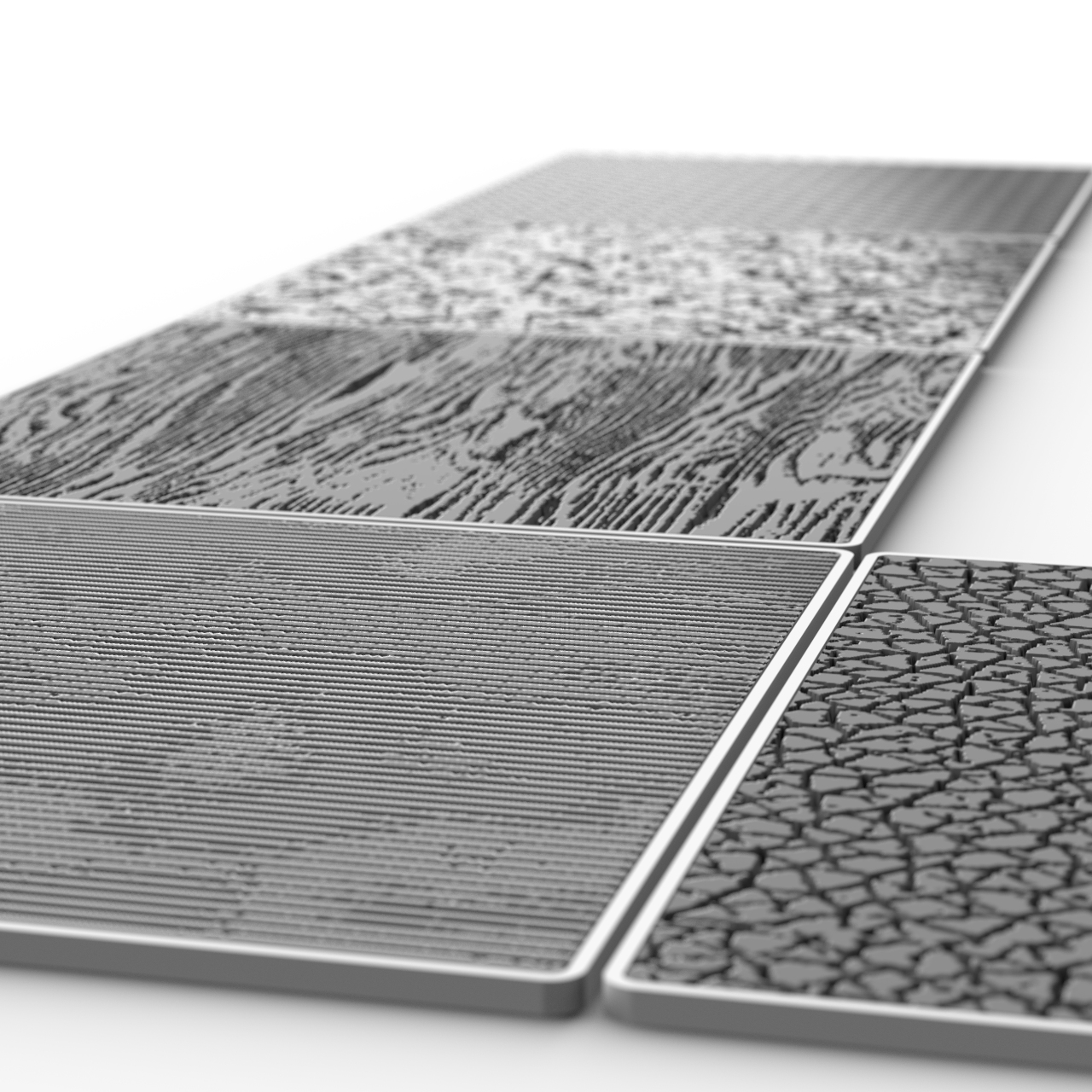
Step 3: From Digital Mesh to Physical Print
Once I was happy with the resulting geometry in KeyShot, it was time to move back to manufacturing.
1. Exporting 3MF: KeyShot allowed me to export this complex displaced mesh as a 3MF file. 3MF is far superior to STL for handling complex textures and geometry data.
2. Back to Fusion (Mesh environment): I imported the 3MF back into Fusion 360.
3. Merging the Bodies: The import results in two separate mesh bodies. To fix this, I used the Mesh Combine tool, selecting one as the target and the other as the tool, and selected 'Merge' to create a single, solid mesh.
4. Slicing & Printing: I then sent the final merged mesh to my Bambu Slicer and 3D printed the plate on my Bambu printer. In the slicer I added ironing to make the top surface as smooth as possible.
Step 4: Sanding and Finishing Touches

Once the prints are off the build plate, there is one final, crucial step: sanding. I lightly sand down the top surface of the printed underlays. This step removes any minor 3D printing artifacts and ensures the top face is perfectly smooth. That way, when you place a piece of paper over it, your pencil only picks up the beautiful, crisp texture from the displaced geometry, rather than the layer lines from the printer.
Step 5: The Final Sketching Result
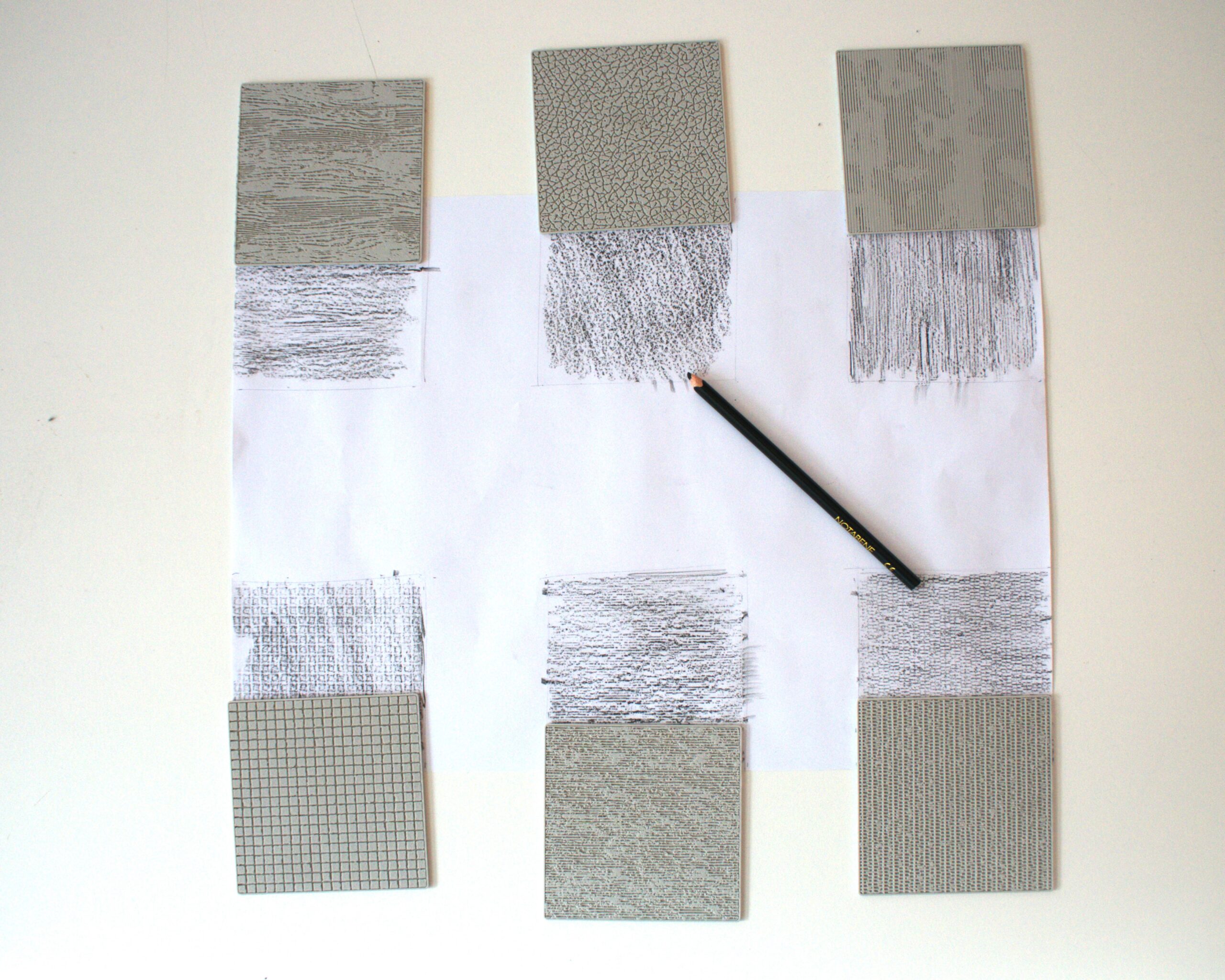
Finally, it’s time for the best part! Just slide your custom underlay beneath your sketch paper and lightly shade over it with a pencil or pastel. The digital KeyShot material is instantly transferred onto your physical sketch, giving your manual ideation process a massive, realistic upgrade. To get the absolute best results when using these custom underlays, keep these three things in mind:
Markers first, texture second: it's best to lay down your base colors with markers before applying the texture. If you apply only pencil it doesn’t pop as much.
Go with the grain: Try to shade in the same direction as the texture's natural grain. This helps the pencil catch the raised edges perfectly, resulting in a much more realistic material representation.
Use a flat tip: Avoid using a razor-sharp pencil. A blunt or flat tip covers more surface area and glides smoothly over the underlay without poking through the paper or getting caught in the deep grooves.
Bringing Textures into the Real World

This workflow proves that displacement can be more than a rendering trick. It is a powerful geometry engine that bridges the gap between digital texture and physical reality. Creating these custom sketch underlays is just one example. You can use this method for everything from creating custom grip textures on functional prototypes to generating complex organic patterns that would take days to model manually in CAD.