
KeyShot Supported Plugins
There are two ways to import your 3D models into KeyShot: direct import or through a plugin. You don’t need a plugin to import your native 3D data. However, the plugins below transfer data faster and deliver tighter integration between KeyShot and your 3D modeling software, making your workflow even faster.
The plugins below have been developed for KeyShot. If you have any questions, please feel free to contact support. To download and get more information about each plugin, click one of the images below.











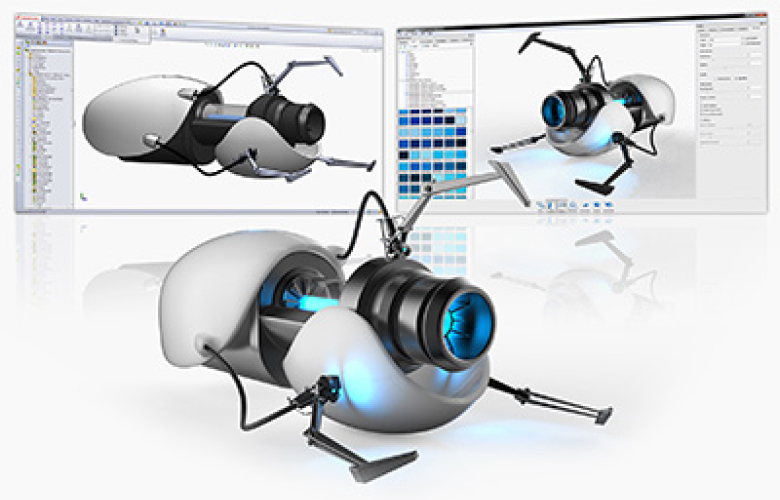
LiveLinking
KeyShot LiveLinking technology takes the KeyShot plugin to the next level. With LiveLinking, your modeling application and KeyShot are connected (via the plugin). With it, you can continue to work in the 3D modeling application after the initial transfer to KeyShot. At any point in time you can update your designs in KeyShot with the simple push of a button. Only the changed parts and layers will be transferred to KeyShot, without the loss of any materials, animations, lighting nor camera setup. Simply put, everything will be maintained. Do this today, tomorrow or next week. All you do is open your model in the 3D modeling software and the scene in KeyShot – and you are linked!
Third-party Plugins
These plugins have been developed by our partners. Please contact the vendor directly for download information and support. To download and get more information about each plugin, click one of the images below.









KeyShot for Siemens NX
Note: The Siemens NX plugin is a paid subscription plugin, available here. Please contact sales@keyshot.com for more information.
Requirements
KeyShot for SketchUp
An extension for SketchUp that allows real-time 3D rendering in KeyShot with LiveLinking model update and animation support.
Requirements
– SketchUp 2023
– KeyShot 2023 (Try | Buy)
– Windows 10 and later or macOS 11.7 or later
See Installation and Release Notes Here
*You may also use SketchUp’s built-in Extension Warehouse browser which enables you to install the extension with one click.
KeyShot for VStitcher
Features
Requirements
Support
Alibre Design plugin
Features
- Maintain color assignments on part level
- Maintain assembly structure
Requirements
- Alibre Design
- KeyShot Pro
- Windows 10 and up
Support
With KeyShot for Alibre Design, users have the ability to apply materials, lighting and make updates to their model in real time. A .bip file can also be saved out for import into KeyShot. For technical support and more information visit alibre.com/support/.
Esko Studio integration
Features
- Maintain color assignments on the part and assembly level
- Maintain assembly structure
- Export to bip without KeyShot installed
Requirements
- Esko Studio
- KeyShot Pro
- Windows 10 and up
- macOS 12 and up
Support
Once your plugin is installed, your focal point for plugin support is through Esko. Contact Esko through their website at https://www.esko.com/.
IronCAD plugin
Features
- Maintain color assignments on part level
- Maintain assembly structure
- LiveLinking – update model inside KeyShot
Requirements
- IronCAD
- KeyShot Pro
- Windows 10 and up
Support
With this plugin IronCAD and KeyShot users have have the ability to apply materials, lighting and make updates to their model in real time. A .bip file can also be saved out for import into KeyShot. Additionally, users may purchase “KeyShot for IronCAD” for even tighter integration directly from www.ironcad.com. For technical support and more information visit ironcad.com/index.php/support/.
KeyShot MegaCAD plugin
KeyShot for MegaCAD is a free integration available for all MegaCAD users. Contact MegaTech Software GmbH or your MegaCAD reseller to learn more.
Features
- Maintain color assignments on the part and assembly level
- Maintain assembly structure
- Transfer saved camera views
- LiveLinking – update model inside KeyShot
- Export to bip without KeyShot installed
Requirements
- MegaCAD
- KeyShot Pro
- Windows 10 and up
Support
For help with or to report issues with KeyShot integration with MegaCAD, please contact MegaCAD support at https://www.megacad.de/support/ Monday – Friday, 9 AM – 12 PM and 1 PM – 5 PM.
KeyShot for Solid Edge
KeyShot for Solid Edge is a bundled product option available for Classic and Premium versions of Solid Edge. Contact your Solid Edge reseller to learn more. Contact Luxion at newsales@keyshot.com for questions about full versions of KeyShot.
Features
- Maintain color assignments on the part and assembly level
- Maintain assembly structure
- Transfer saved camera views
- LiveLinking – update model inside KeyShot
- Export to bip without KeyShot installed
Requirements
- Solid Edge ST8 and up
- KeyShot for Solid Edge (bundled)
- Windows 7/8/10 32/64-bit
Support
Your focal point for Solid Edge support is your local reseller or account access through Siemens Support.
solidThinking plugin
Features
- Maintain color assignments on the part and assembly level
- Maintain assembly structure
- Transfer saved camera views
- LiveLinking – update model inside KeyShot
- Export to bip without KeyShot installed
Requirements
- solidThinking Evolve
- KeyShot Pro
- Windows 10 and up
- macOS 12 and up
Support
Once your plugin is installed, your focal point for plugin support is through solidThinking Inc. Contact solidThinking Inc. through their website at https://www.solidthinking.com/.
Spaceclaim plugin
Features
- Maintain color assignments on part level
- Maintain assembly structure
- Transfer saved camera views
- Assign KeyShot materials directly inside of SpaceClaim
Requirements
- SpaceClaim Engineer
- KeyShot Pro
- Windows 10 and up
Support
KeyShot integration with SpaceClaim allows users to apply materials, textures and lighting to instantly see the appearance in the SpaceClaim user interface and continue work on their model. Through this integration users have the added ability to save out a .bip file to open in KeyShot with all materials maintained. For support or to find out more, please email support@spaceclaim.com.
ZW3D plugin
Features
- Maintain color assignments on part level
- Maintain assembly structure
Requirements
- ZW3D
- KeyShot Pro
- Windows 10 and up
Support
For support with ZW3D and the KeyShot integration, please visit ZWSOFT and login with your ZWSOFT account to submit a ticket.
KeyShot for ZBrush
Overview
The ZBrush to KeyShot Bridge is available through Pixologic. ZBrush and the bridge are compatible with the latest version of KeyShot Pro that may be purchased here.
Support
Once the ZBrush to KeyShot Bridge is installed, your focal point for plugin support is the Pixologic through their telephone and electronic access.