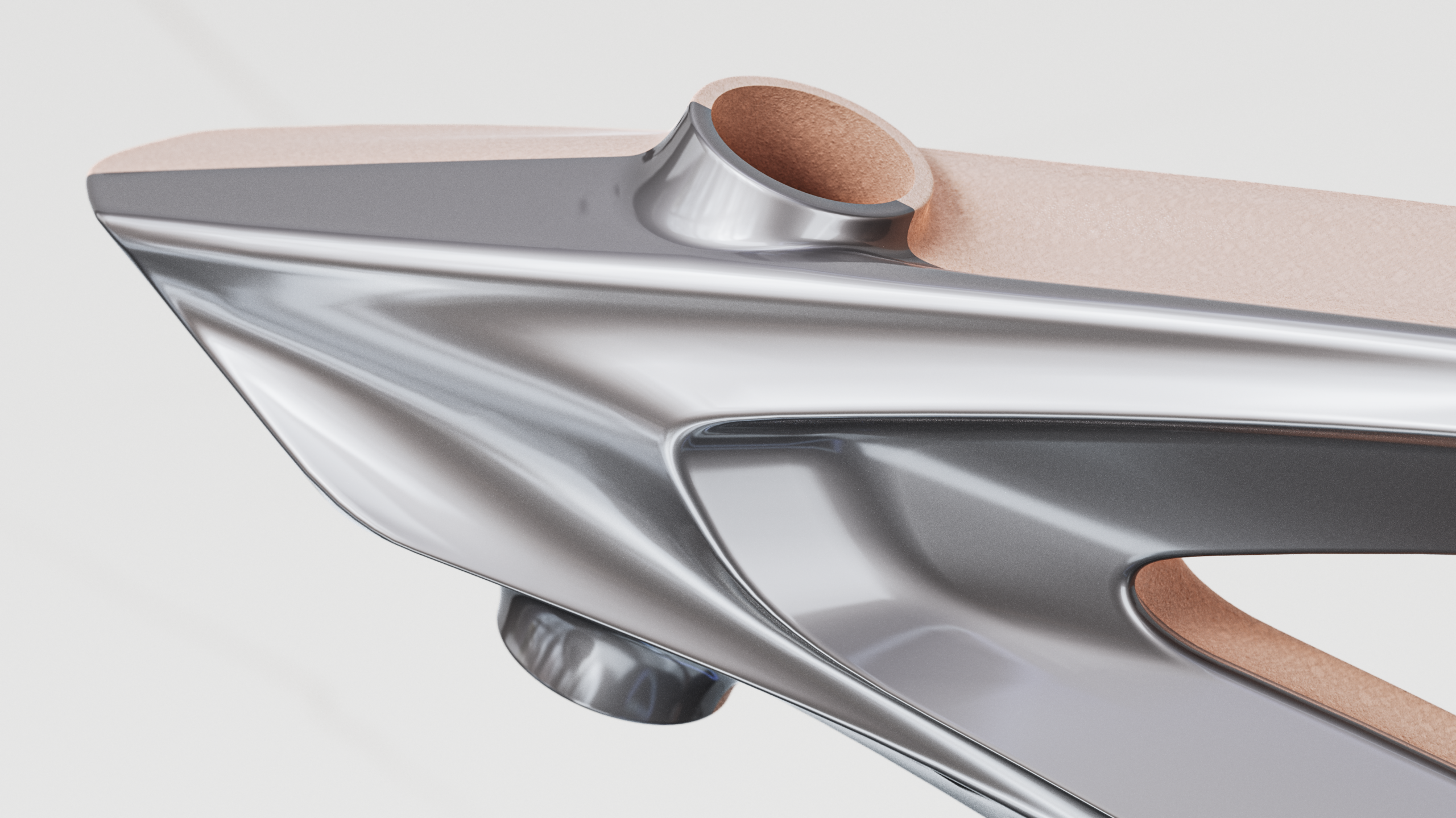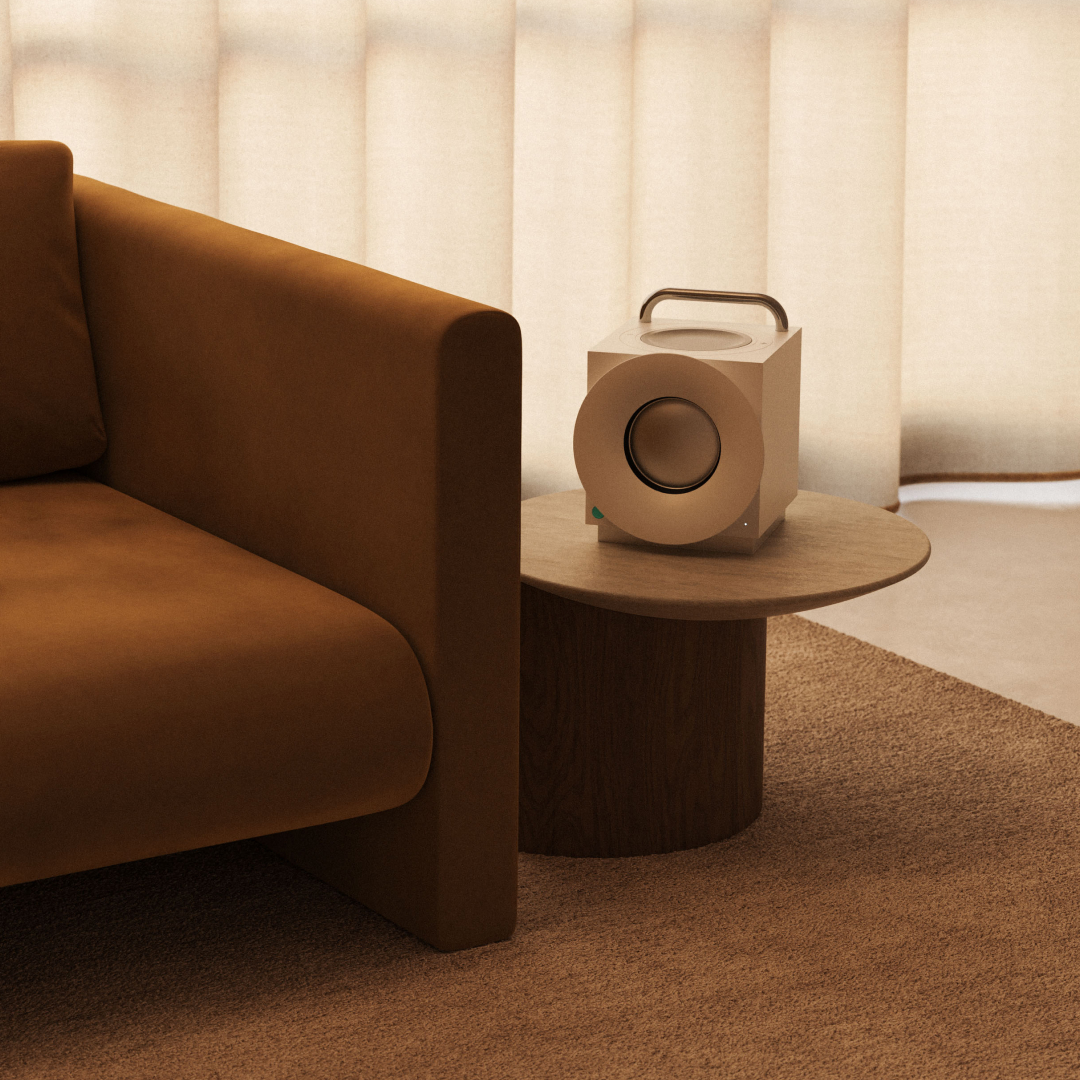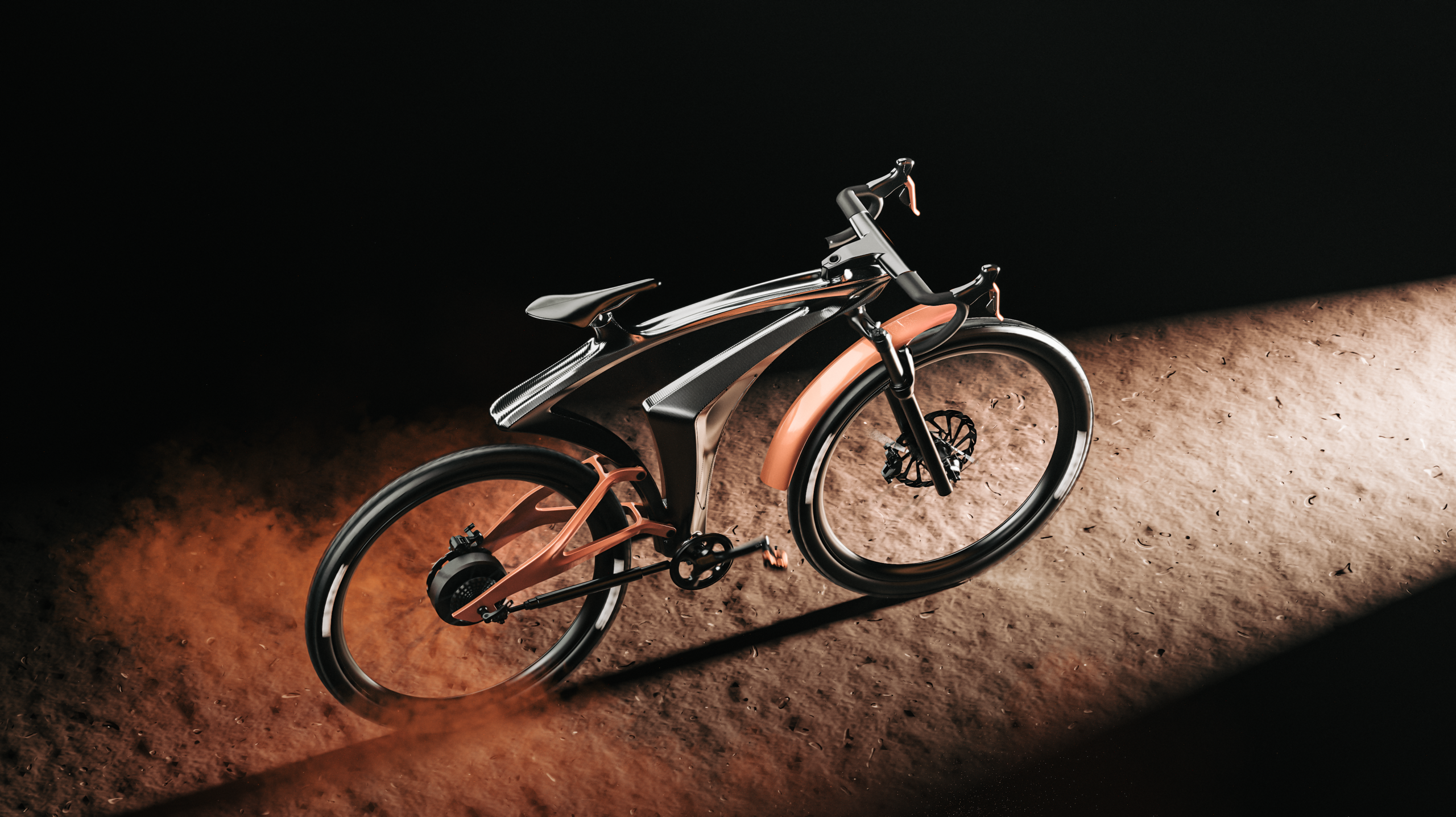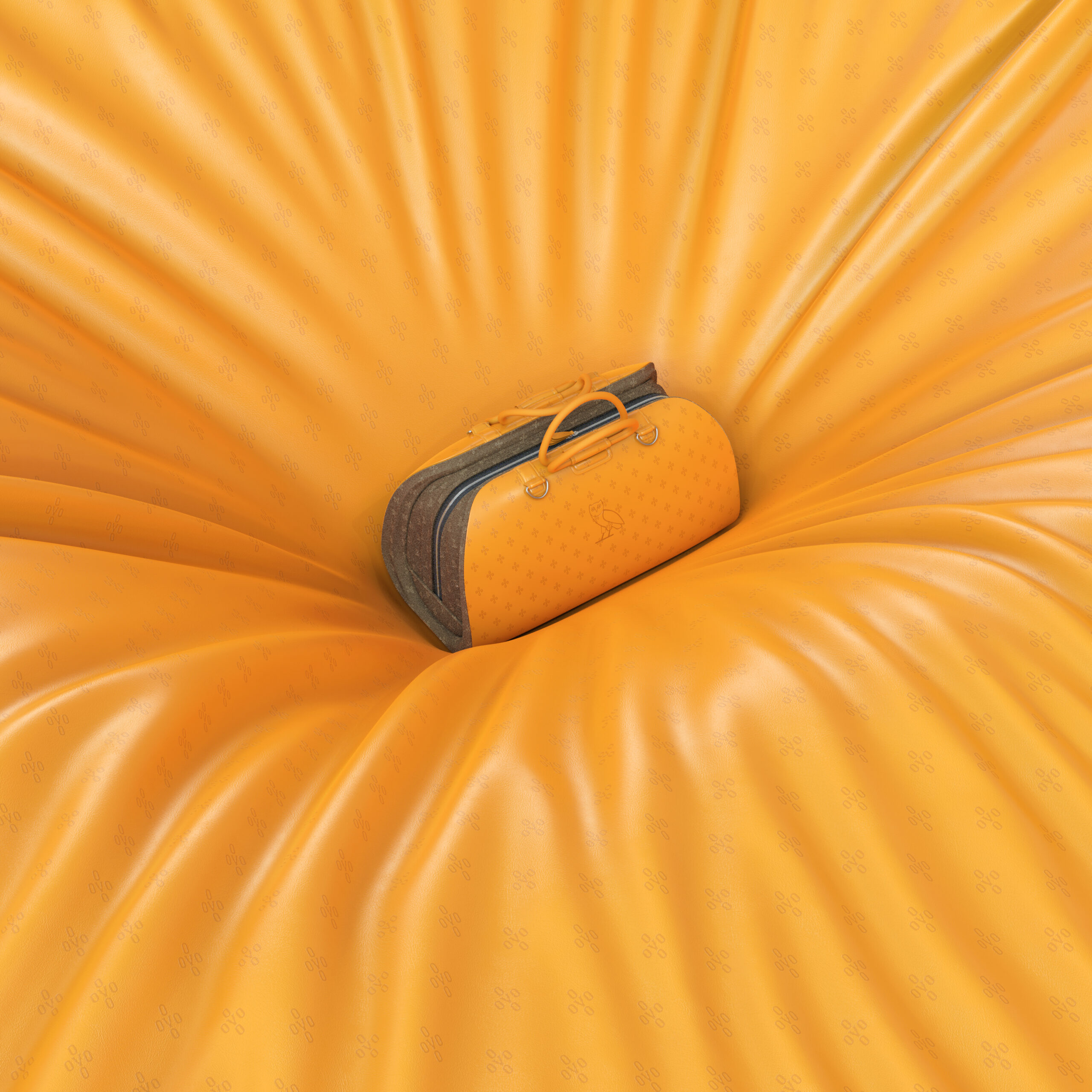

When it feels like there aren’t enough hours in the day, you want to do everything you can to speed up your rendering output. We have good news for you: Not only is KeyShot Studio the fastest and easiest-to-use rendering software on the market, but recent upgrades and new offerings, including cloud rendering, can help you achieve your fastest rendering output yet. Speed up your 3D rendering with these new capabilities and the expert time-saving tips below.
Get fast 3D rendering and all the details with progressive denoising
Now you can denoise images faster without overworking and blurring sensitive areas of an image. With progressive denoising, you can use denoise for all your renderings, dramatically cutting down on render time. No need to debate if denoise is worth the wait – progressive denoising provides a speedy solution for your rendering workflow.
Step on the gas with up to 50% Faster Physical Lights
Recent KeyShot Studio upgrades to physical lights free you up to use them even more, giving you more realistic renderings in less time. Now, working with physical lights is more responsive inside KeyShot Studio, plus the performance improvements apply to each light source individually – meaning the more physical lights you use, the bigger the performance benefit.
Manage quick deadlines with KeyShot Cloud Rendering
Cloud rendering is a great way to speed up your 3D rendering workflow without needing to create an onsite rendering farm. You now have KeyShot Cloud Rendering inside KeyShot Studio that allows you to save time by offloading the rendering on your own computer or network to process your entire 3D rendering or animation on the KeyShot Cloud.
Speed up 3D rendering and skip post-processing with Image Styles
Designers often get accustomed to using several different tools in order to achieve their desired results, but Image Styles in KeyShot Studio lets you take care of all the post-processing you’ll need in your final render. Play with exposure, contrast, white balance, highlights, shadows, image sharpening and other parameters right in Studio: just click on the Image tab on the top right corner and switch from Basic to Photographic.